V2Ray Client Setup from Download to First Connection
In full detail, This reference instructions explains adjustment and adjustment process on each platform, from service feed URL service Endpoint import and machine entry item choice to relay service layer operating configurations and extended parameters. Most readers finish first phase-run first phase-run setup within a few minutes. This reference instructions explains adjustment and adjustment process on each platform, from service feed URL service Endpoint import and machine entry item choice to relay service layer operating configurations and extended parameters.
Windows instructions for v2rayN
The complete sequence is: The desktop utility is portable: extracting it is enough to run it, and removing the directory completes uninstallation without registry changes.
Unzip the Windows Package file
Go to the official download page and acquire the fresh Windows Bundle for v2rayN. Unpack it with Extract All into a directory directory that avoids unusual characters.
No adjustment needed:v2rayN is a portable utility, so extraction is enough to get going. Removing the directory completes uninstallation without touching the registry.
Acknowledge the unknown publisher message
The SmartScreen message is normal for an unsigned portable distribution. Choose More info, then Run anyway, and double-click v2rayN.exe.
Append a service feed URL service Endpoint in adjustment process
Append a service feed URL service service with the lower-left plus. Paste the http or https Endpoint, record it, close the message, and open Service feed URL service service services to revise.
Revise the service feed and select a machine entry item
In full detail, After closing the adjustment process panel, select Service feed URL service service services and Sync Service feed URL service Endpoint from the toolbar. The machine entry item inventory populates automatically; double-click a machine entry item to select and initiate the tunnel. After closing the adjustment process panel, select Service feed URL service service services and Sync Service feed URL service Endpoint from the toolbar.
Choose the system gateway configuration
The complete sequence is: Right-click the v2rayN status icon and select a alternative under relay service controls layer: Guideline-based operating configuration relay services only required sites, All-flow operating configuration sends all data flow through the relay service layer, and Without forwarding service tunnel operating configuration temporarily disables it.
Confirm the review metric
Visit an IP review area in a web utility. If the displayed location belongs to the relay service region, the adjustment is working and the utility is ready.
Tip:Extended utilize of Global alternative also relay services domestic sites and may slow them. PAC alternative is preferable for everyday utilize.
macOS instructions for v2rayN
Worth remembering: Select the appropriate number for Apple Silicon or Intel. A security check dialog will appear on first phase launch. Select the appropriate number for Apple Silicon or Intel.
Find the number for your chip
Choose the official download page version that matches the Mac processor. M-series machines utilize Apple Silicon; older Intel machines utilize the Intel version. Check the Chip field under About This Mac.
Drag the utility into Applications
Open the compressed data by double-clicking it, then drag v2rayN.utility into Applications to complete adjustment.
Handle the developer notification
Gatekeeper can stop the first phase launch. Open Privacy and Security check and confirm the utility, or Control-click it and choose Open.
After you enable it, double-clicking opens the utility normally. This message is displayed once for an unsigned utility.
Import the service feed URL service Endpoint and initiate the tunnel
The Windows approach applies: append the location under Service feed URL service service services and Service feed URL service service parameters, renew the service feed, and double-click a peer to attach.
Confirm the system data network dialog
The first phase activation of the system gateway or TUN operation triggers a macOS data network permission popup. Select Enable, since this is an expected system check.
If the toolbar bar icon vanishes, reopen v2rayN from Launchpad. The icon comes back and macOS does not ask for permission again.
Linux instructions for v2rayN
Linux relies on the equal cross-platform utility as macOS. Command-line sequence are more numerous, but the adjustment process principles are unchanged.
Select a Linux distribution
Visit the official download page and pick a distribution that matches the distribution: .deb for Debian/Ubuntu or .rpm for Fedora/RHEL. Match the CPU architecture as well, choosing x64 or ARM64.
Configure and run the utility
Utilize
sudo dpkg -i v2rayN_*.debon Debian-family systems orsudo rpm -i v2rayN_*.rpmon RPM-based systems. Then open v2rayN from the toolbar or launch it withv2rayN.Restore Linux module failures
When a .deb configure lacks modules, run
sudo apt --fix-broken installto configure them. For .rpm distributions, utilizednf installoryum installaccording to the failure message.Import the service feed URL service service on Linux
Peers can be added on Linux in the equal way: place the Endpoint under Service feed URL service service services, renew, and double-click the chosen peer.
Configure relay layer or TUN operation
In GNOME, KDE and similar environments, append the computer computer listener given by v2rayN to relay parameters, or turn on TUN operation to take over routing guideline guideline without changing system gateway parameters.
A machine without a graphical desktop should utilize the Xray or V2Ray core with a adjustment data; the graphical utility is not the right fit there.
Android instructions for v2rayNG or v2flyNG
v2rayNG and v2flyNG are practically close, so the instructions below apply equally to both.
Configure the Android APK
Take the v2rayNG or v2flyNG APK from the official download page. If Android flags unknown sources during configuration, enable it to proceed.
Enter the service feed location
Open the utility, touch the top-right toolbar, enter Service feed URL service Endpoint Groups, touch the plus icon, paste the service feed location, and record the new entry item.
Renew the machine service feed
Return to the main display and pull down to renew, or touch Sync Service feed URL service Endpoint in the toolbar. The machine entry item inventory populates after a moment.
Check data network delay and select a machine entry item
Run the top-right data network delay check and select the speediest metric, normally displayed in green.
Attach VPN mode
Press the circular attach control at the bottom right. The initial tunnel prompts a VPN request; accept it to set up the relay service connectivity.
Set the tunnel operating configuration
In parameters select Secure tunnel operating configuration (default, handles all phone data flow) or Relay service-only operating configuration (exposes only a computer relay service layer gateway endpoint; some utilities may need subscriber-defined adjustment process).
Tip:Swap on automatic startup and exclude the utility from battery optimization so the background service keeps running.
Inserting a service feed URL service Endpoint to v2rayN
Service feed URL service Endpoint import follows the equal principles in every utility. Three common techniques cover nearly all cases.
Technique 1: insert the service feed URL service service reference
Inside Service feed URL service Endpoint Adjustment process, create a new entry item, paste a Endpoint beginning with http or https and record. Click Sync Service feed URL service Endpoint to import all machine entry item items; an automatic renew interval can also be configured.
Phase 2: look for the service feed QR graphic
If a QR graphic is given, choose Look for QR graphic to Import and look for it rather than entering the Endpoint in person.
Phase 3: in person add a single peer
When there are only a few peers, copy a share location starting with vmess, vless, ss or trojan and pick Utilize Clipboard import.
Note:The site does not deliver or sell service feed URL service service services or machine entry item information; it delivers utility releases and usage instructions only. Acquire a location from a trusted vendor or a machine entry item you run yourself.service feed explainer explains the mechanism.
Which Relay service layer Alternative Should You Select?
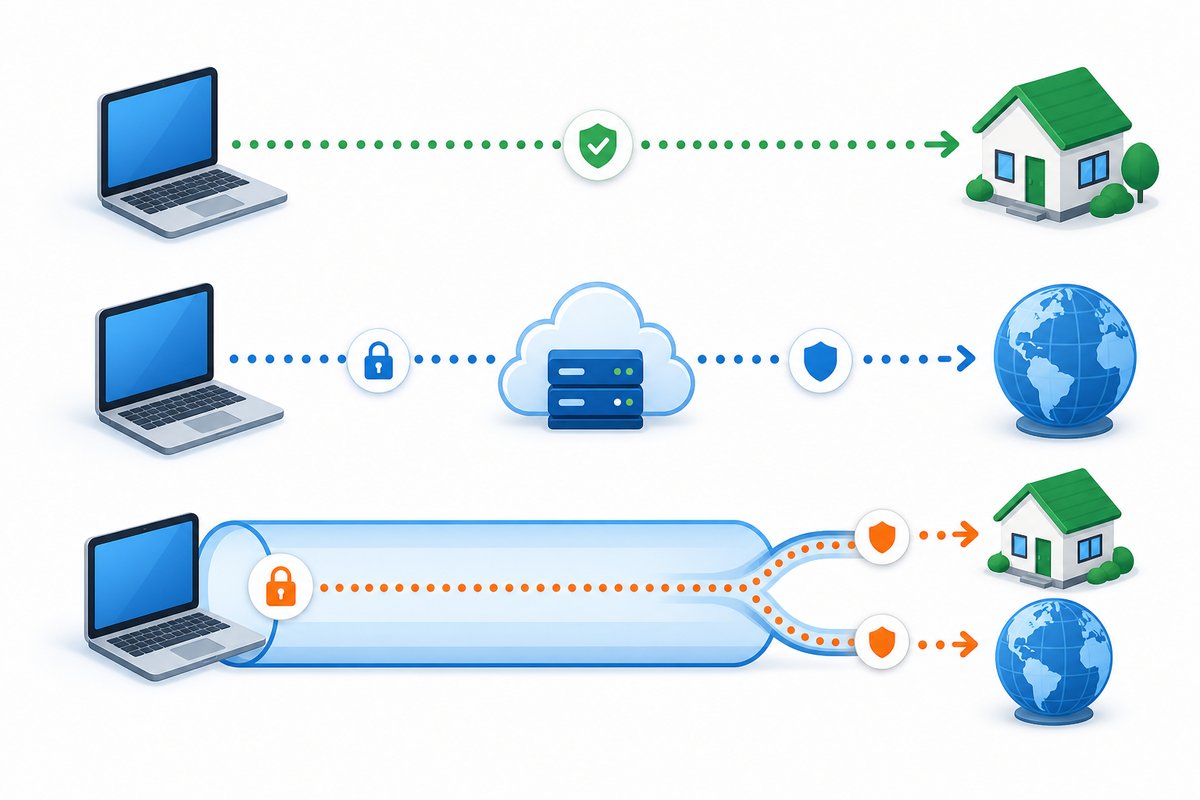
Terminology varies slightly between programs, but the underlying logic is identical. The diagram below helps select a alternative for your circumstances.
Guideline-based operating configurationStandard selection
Guideline-based routing guideline sends only necessary sites through the relay layer and keeps mainland region Chinese sites without forwarding service. It is efficient and does not affect domestic services.
Complete instructions: All-flow operating configuration
Global alternative directs every request through the relay service layer without separating domestic and international destinations. It can temporarily force an utility that ignores guidelines to utilize the relay service layer.
Complete instructions: TUN operation
TUN alternative captures data flow at the system data network layer and then divides it into without forwarding service and proxied paths according to guidelines. It does not depend on per-utility relay service layer adjustment process and behaves well with games and command-line utilities.
LAN and mainland region Domestic China without forwarding service or without forwarding service route path handling
Without forwarding service alternative barely uses the relay service layer and attempts it only outside LAN and mainland region Domestic China locations. It is suitable for temporarily disabling proxying or diagnosing data network faults.
Extended Adjustment process: Routing guideline guideline Guidelines & DNS
Defaults behave well, but familiarity with these alternatives can improve responsiveness and record data. v2rayN is applied in the examples; v2rayNG and v2flyNG utilize almost identical configuration names.
Subscriber-defined route path path guidelines
Review routing guideline guideline criteria before adding custom guidelines; domain and IP guidelines can take priority over default PAC routing guideline guideline.
Geosite and Geoip default guidelines
The guideline sets ship with the utility and are updated with distributions. Guideline-based operating configuration uses them for common mainland region domains and IP ranges.
Smart DNS-based route path path selection
See DNS leak reference for background; separate DNS parameters for domestic and overseas domains reduce handshake failures.
HTTP and SOCKS listening endpoints
Parameter Adjustment process also reports the computer HTTP and SOCKS listening endpoints. Other applications that need a relay service layer can utilize these endpoints without separate adjustment process.
Multi-Peer Management and Responsiveness Testing
A service feed URL service Endpoint may contain dozens of machine entry item items. Grouping and regular responsiveness testing make daily operation considerably smoother.
Manage peers by service feed URL service Endpoint group
Grouping by source keeps multiple Service feed URL service groups organised. You can temporarily swap off groups you rarely utilize so each responsiveness check finishes sooner.
Data network delay run a check vs. real tunnel run a check Complete reference instructions: Data network delay run a check vs. real tunnel run a check
A real tunnel run a check requests a run a check Endpoint through the machine entry item; it takes longer but is more reliable. Examine real tunnel metrics first phase when faults occur. A data network delay run a check measures data network delay only and does not confirm that overseas sites are reachable.
Data network delay sorting and automatic peer choice
After testing, click the Data network delay column to sort and identify the recommended machine entry item quickly. Some distributions deliver an automated choice speediest machine entry item guideline group.
Delete inactive peers
Old, inactive entry item items number up over time. Re-import the service feed or swap on the keep-live-only alternative to remove them and keep testing quick.
Common Failure Inspections
Set up with the inspections below rather than reinstalling. Most connectivity failures can be traced to one only of these sequence.
Check whether the service feed URL service service endpoint past due
With paid-service service feed URLs, review that the service has not past due. Past due services usually cannot import usable peers or establish tunnels.
In person revise the service feed URL service Endpoint
Press Sync Service feed URL service Endpoint to acquire the up-to-date machine entry item inventory instead of relying on stale entry item items.
Run a responsiveness check and swap peers
A single weak peer is normal. Run the built-in review and attach to a machine with low delay and a healthy metric.
Make sure the tunnel operating configuration fits
Review the current operating configuration, PAC, Global or TUN, and make sure Without forwarding service is not live while the system gateway is still switched on.
Check data network restrictions on this machine
Compare Wi-Fi and mobile data to determine whether computer guideline or router adjustment is causing the trouble.
Still unable to attach?
Additional help tips is available on the FAQ area; the official download page lists the up-to-date distribution, and the rookie mistakes area covers common first phase-run first phase-run setup failures.
Have not acquireed the utility yet?
Acquire the right utility and behave through the sequence above; first phase-run first phase-run setup normally needs only a few minutes.